On this page
Opening Settings
Click the Pluck icon in the menu bar and choose "Settings…". The Rules tab holds the rule list and the editor.
Adding a rule needs an active trial or a licence. Once the trial ends without a purchase, the + button is disabled. Editing existing rules, and turning them on and off, still works.
The rule list
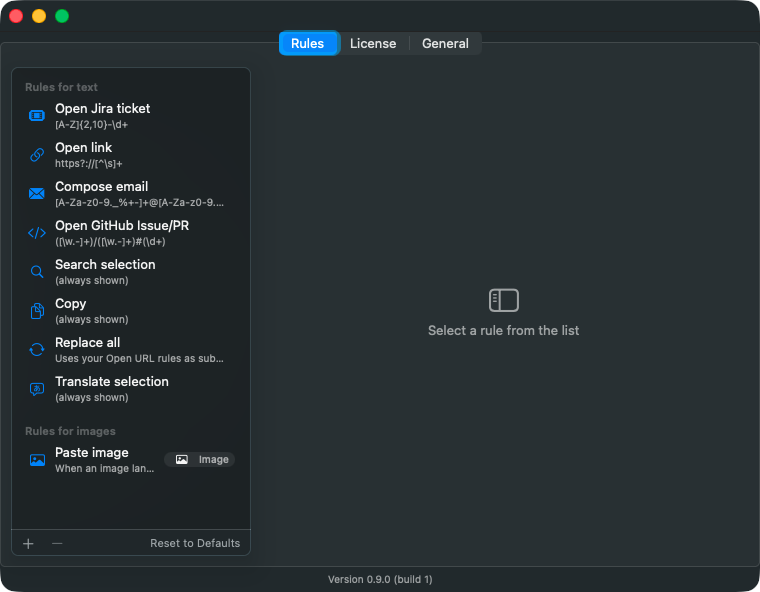
Rules are listed on the left, in two sections: rules for text and rules for images.
Each row shows the rule's name with its match condition underneath. Rules with an empty match condition show "(always shown)"; Replace All and Paste Image, which have no match condition, show a short description. Disabled rules are labelled "Disabled".
Suggestions appear in the order of this list. A new rule goes to the end.
There are three buttons under the list.
- + Adds a new rule. It starts out as a Web Search.
- − Deletes the selected rule. Replace All and Paste Image can't be deleted; turn them off instead.
- Reset to Defaults Removes every rule you've made and restores the ones Pluck ships with. This can't be undone.
Choosing an action
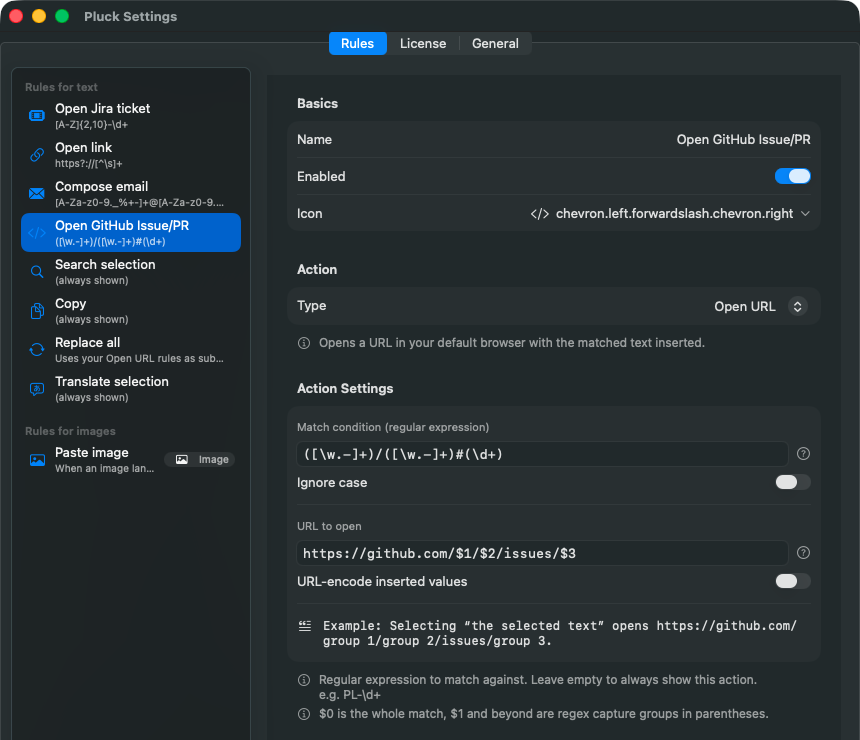
Select or add a rule and the editor appears on the right. Start with the Type menu in the Action section, which decides what the rule does. It has three sections, and choosing one shows only the fields that type needs.
Presets
Common URL actions you can pick as ready-made rules. There are three, and all of them are of type Open URL. They're for handing the selected text straight to an AI chat or a search.
To use one:
- Press + to add a rule, or select an existing rule you don't mind overwriting.
- Open the Type menu and pick one from the Presets section.
- The name, icon and URL to open are filled in. The match condition is cleared and "URL-encode inserted values" is turned on.
- Press Save.
What each preset fills in, and what it does:
| Preset | URL to open | Icon | What it does |
|---|---|---|---|
| Send to Claude | https://claude.ai/new?q=$0 | quote.bubble.fill | Opens a new Claude chat with the selected text as the prompt. |
| Send to ChatGPT | https://chatgpt.com/?prompt=$0 | message.fill | Opens a new ChatGPT chat with the selected text as the prompt. |
| Research with Perplexity | https://www.perplexity.ai/search?q=$0 | magnifyingglass | Searches Perplexity for the selected text. |
Each one opens that service's website in your default browser. Services that require an account may show their sign-in page first.
Worth knowing once you've picked one:
- The match condition is empty, so the suggestion appears for anything you select. To narrow when it appears, for instance only for longer passages, write a match condition.
- A preset is just a pre-filled Open URL rule. After you save, the Type menu shows Open URL; the preset's name isn't kept. The name, icon and URL can be edited like any other rule.
- Leave "URL-encode inserted values" on. Turned off, the URL breaks whenever the selection contains spaces, punctuation or non-Latin text.
- There's no Google preset. The Web Search type does the same job.
Basic
Five types where you write the match condition and template yourself.
- Open URL Opens a URL with the matched text inserted, in your default browser.
- Web Search Searches Google for the selected text.
- Copy Copies the matched text, or text built from the template, to the clipboard.
- Run Command Runs a zsh command with the selected text inserted.
- Translate Detects the language of the selection and translates it into the other language of the pair you set.
Built-in Features
Replace All and Paste Image. Their behaviour is fixed and they have no match condition or template. You can change only the name, icon, and whether they're enabled. One of each always exists and can't be deleted, and other rules can't be switched to these types.
Each action's settings are described in Actions and recipes.
The fields of a rule
Basics
- Name The heading shown on the suggestion. A name that says what pressing it does, like "Open Jira ticket", is easier to pick out when several suggestions are showing.
- Enabled Turn this off and the rule stops producing suggestions. Use it to park a rule without deleting it.
- Icon The symbol shown on the suggestion, picked from a list.
Action Settings
- Match condition A regular expression for the text this rule reacts to. Leave it empty to react to everything.
- Ignore case On by default. Turn it off when only capitals should match, as in
[A-Z]{2,10}-\d+. - Template Its label changes with the type: "URL to open" for Open URL, "Search query" for Web Search, "Text to copy" for Copy, "Command to run" for Run Command. Translate has no template; you choose Language 1 and Language 2 instead.
- URL-encode inserted values Open URL only. Encodes only the values inserted by
$0and the other placeholders, so spaces,&and non-Latin text survive inside a URL query. Turn it on when the selection goes into a URL as a search term or prompt. For a ticket key made of letters and digits, it makes no difference.
As you type, an "Example:" line appears underneath, restating your template with the placeholders spelled out in words. Use it to check the URL or string is what you meant before saving.
Nothing changes until you press Save. If you move to another rule with unsaved changes, you're asked whether to save or discard them. Revert takes you back to the saved version.
Match conditions
A match condition is a regular expression in ICU syntax. Pluck looks through the selected or copied text for every place it matches and makes one suggestion per match.
| To react to | Match condition |
|---|---|
| A Jira ticket key such as WT-1234 | [A-Z]{2,10}-\d+ |
| A URL | https?://[^\s]+ |
| An email address | [A-Za-z0-9._%+-]+@[A-Za-z0-9.-]+\.[A-Za-z]{2,} |
| GitHub's owner/repo#123 | ([\w.-]+)/([\w.-]+)#(\d+) |
| An 8-digit order number | \b\d{8}\b |
- Leave it empty and the rule reacts to any text, with the whole selection as the action's subject. Catch-all rules like Search, Copy and Translate are written this way.
- Matching is partial. A ticket key in the middle of a sentence is found.
- Several matches in one selection give several suggestions. If one rule matches the exact same string more than once, those collapse into one.
- A rule that takes too long to evaluate is cut off and produces no suggestion. A pattern like
(a+)+$, which gets slower without limit on some input, won't freeze the app.
Templates and captures
Inside a template, these placeholders insert what was matched.
| Placeholder | Inserts |
|---|---|
$0 | The whole match. With an empty match condition, the whole selection. |
$1, $2 … | The groups in ( ) in your match condition, counted from the left starting at 1. A group that didn't take part inserts nothing. |
${name} | A named group, written (?<name>…) in the match condition. |
With the match condition ([\w.-]+)/([\w.-]+)#(\d+) and the URL https://github.com/$1/$2/issues/$3, selecting anthropics/claude-code#42 sets $1 to anthropics, $2 to claude-code and $3 to 42, and opens https://github.com/anthropics/claude-code/issues/42.
Insertion rules
- A
$5or${name}with no matching group is left in place as text rather than removed. A template that refers to a group that doesn't exist can't be saved, though. - Inserted values aren't read again. If the matched text itself contains something like
$1, it isn't replaced a second time. - For a run of digits like
$12: with 12 or more groups it means group 12; otherwise it means group 1 followed by the character2. - For Copy, an empty template copies the whole match as it is.
- Translate has no template. With an empty match condition the whole selection is translated; with one, the matched part.
When it won't save
When Save is disabled, the reason is shown to the left of the button.
| Message | Fix |
|---|---|
| Enter a name. | The name is empty. |
| The regular expression is invalid. | The match condition doesn't parse. Check for an unclosed parenthesis or bracket. |
| Enter an action template. | Open URL, Web Search and Run Command all require a template. |
| The template refers to a capture group that does not exist. | The template uses $3 but the match condition has two groups, or a named group is misspelled. |
| Choose two different languages. | Language 1 and Language 2 are the same on a Translate rule. |
| The URL must start with a scheme such as https:. | The URL to open doesn't start with https:, mailto: or another scheme. A template of just $0 passes, since the selection is taken to be the URL itself. |
Where rules live
Rules are stored in ~/Library/Application Support/Pluck/rules.json. Editing in Settings updates this file, so you don't normally need to open it. Copy it to back up your rules or move them to another Mac.
When an update adds a new type of action, its default rule is added the next time Pluck launches. Rules you already have aren't changed.
To remove every rule you've made and go back to the initial set, use "Reset to Defaults" under the list.